
Organizations that allow personal smartphones and tablets to be used in their environment quickly run into a challenge. Corporate data ends up on a device the company does not own, and does not manage. The device’s makes and types are often unknown to the company. App protection policies in Microsoft Intune provide an answer to that problem. They allow organizations to keep company data contained inside approved apps and separate it from personal data on the device.
App protection policies operate at the app layer rather than the device layer. That makes them suitable for unenrolled, personally owned devices. No enrollment is required, no management profile needs to be installed. The user keeps full control over the rest of their device. The trade-off is that a policy only applies to apps that are capable of working with it, which leads directly to the first thing administrators need to understand.
The building blocks of an app protection policy
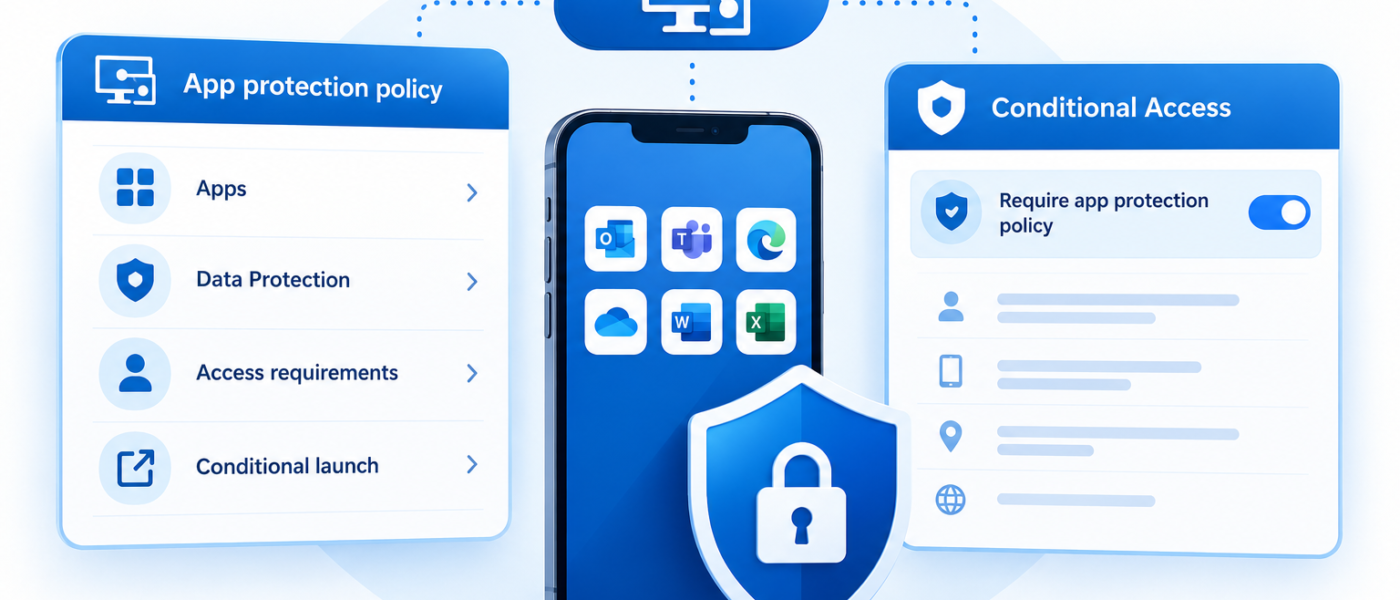
Before looking at what an app protection policy can and cannot enforce, it helps to know how it is structured. Regardless of the platform it targets, a policy consists of four parts.
At the top of an app protection policy you will find the Apps section. This section determines which applications the policy applies to. Administrators can select individual public apps such as Outlook, Teams or OneDrive, have the policy targeted toward all Microsoft apps, Microsoft Core Apps, work with a self-curated list of (custom) apps, or select all apps in one go. It is worth noting that “all apps” does not literally mean every application installed on the device. It refers to the list of applications that support app protection policies, which is curated and maintained by Microsoft. An app that is not in scope of a policy is regarded as an unprotected app.
The second part is called Data protection. This is where the actual containment of company data is configured. It governs how data may move between protected and unprotected apps, e.g. whether copy and paste is restricted, whether copies of org data may be saved, whether screen capture is permitted, … . It also covers encryption requirements of the data held by the app and functionality requirements like whether org data can be printed.
Access requirements is the next part of the app protection policy. In this section it is defined what a user must do before the protected app can access any company data. The typical controls here are the requirement of a PIN to access the app, the PIN’s complexity requirements, the option to allow the use of biometrics instead of a PIN, whether a work or school account is required, periodic rechecks of the access requirements after inactivity …
The fourth and final part is called Conditional launch. Where access requirements deal with the user, conditional launch deals with the state of the device and the app. It evaluates a set of conditions each time a protected app is opened and takes an action when one of those conditions is not met. This is the part of the policy that determines whether a device is allowed to launch a protected app at all, and it is the focus of the remainder of this series.
An app protection policy alone does not block anything
An app protection policy alone does not prevent users from reaching corporate data with an unprotected app. The policy describes how a protected app must behave once it is in use. It says nothing about whether an unprotected app is allowed access to the company’s environment in the first place.
Without an additional control, a user on an iOS/iPadOS or Android device can still add their work account to the native mail client, a third-party mail app, or any other client that supports modern authentication. If that app has no app protection policy applied to it, corporate data lands outside the protection entirely. The app protection policy is simply not in effect.
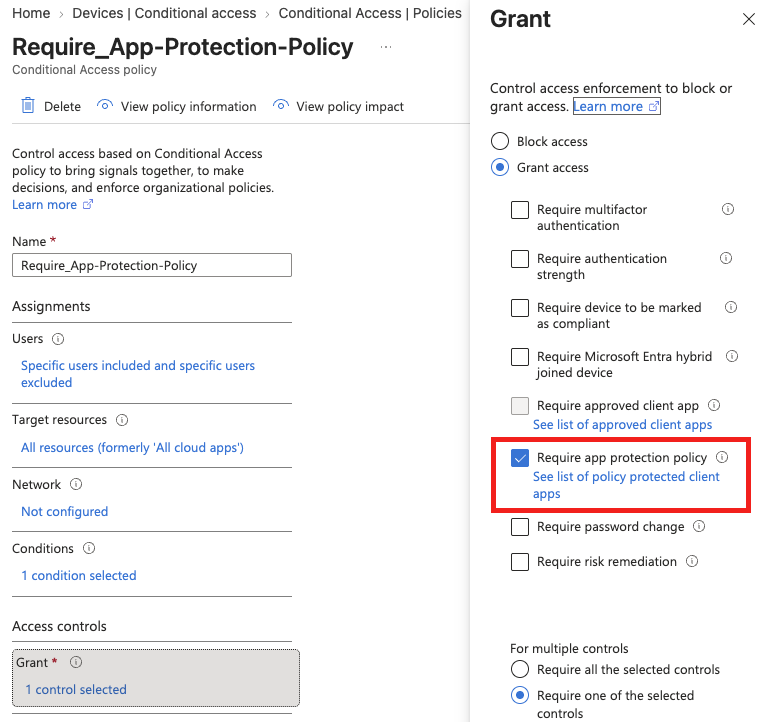
This is where Conditional Access comes into play. A Conditional Access policy targeting iOS/iPadOS and Android with the Require app protection policy grant control ensures that only client apps capable of receiving an Intune app protection policy are permitted to authenticate. Any app that cannot honor the policy is blocked at sign-in. It’s the combination of the two policies that actually enforces the protection. App protection policies define how the protection is set up, while Conditional Access policies guarantee the former is applied.
Device registration in Entra ID is part of the requirement
Before the Require app protection policy control of a Conditional Access policy can be satisfied, the device must be registered in Microsoft Entra ID. Registration is handled by the broker app on the device. For devices running iOS/iPadOS, Microsoft Authenticator will be the broker app. On Android devices, Intune Company Portal will serve as broker app. If the broker app (MS Authenticator or Company Portal) isn’t installed the first time a user signs in against such a Conditional Access policy, users are prompted to install the broker app first.
Registration is deliberately lightweight. It does not enroll the device into management and it does not give administrators control over the device itself. The device is provided with an Entra ID device object, which gives the device an identity the tenant can recognize. That Entra ID device object is what allows Conditional Access to evaluate the request, and it gives administrators a minimal record of the devices accessing their environment.
Levels of protection
Microsoft has provided a framework that groups app protection policy settings into three levels. Level 1, enterprise basic data protection, covers the fundamentals such as requiring a PIN, encrypting company data and allowing selective wipe. Level 2, enterprise enhanced data protection, adds data leakage prevention controls and introduces requirements around the operating system itself. Level 3, enterprise high data protection, is aimed at organizations with stricter security requirements and tightens the configuration further.
The framework is a useful starting point. Most organizations should settle somewhere around Level 2 for their general user population in my opinion. The individual data protection settings behind each level are outside the scope of this post, but one addition starting at Level 2 is worth singling out.
Conditional launch settings are extended with the minimum operating system version requirements
Starting at Level 2, Microsoft’s framework introduces conditional launch checks based on the operating system version. As discussed earlier, the conditional launch section is the part of an app protection policy that evaluates the state of the device and the app at the moment a protected app is opened. If a condition is not met, the policy intervenes before the user reaches any corporate data.
A number of conditions can be evaluated, including minimum app version, jailbreak or root detection, device model or manufacturer, and the operating system version. Both a minimum and a maximum OS version can be specified. The minimum blocks devices running an OS that is too old, typically because the vendor no longer ships security updates for it. The maximum blocks devices running software that is newer than what the organization has validated, which is occasionally useful when a major release is known to break a business application.
This series will focus specifically on the minimum OS version. It is the condition most directly tied to the security posture of unmanaged devices, and it is the one that produces the clearest picture of which devices in an environment have fallen behind.
Warn, block and wipe
Each conditional launch condition is paired with an action that determines what happens when the condition is not satisfied. Three actions are available.
Warn shows the user a dialog explaining that the device does not meet the requirement each time the app is opened, but still allows the app to open. It is the gentlest option and is generally used to give users advance notice before an organization starts enforcing something.
Block access prevents the protected app from opening. Company data already on the device remains in place, so the user regains access as soon as the device is brought back into line, for example by installing a pending OS update.
Wipe data removes the corporate data from the protected apps on the device. Personal data is untouched, but the company data is gone and will only return once the device meets the requirement and the user signs in again. This is the most disruptive of the three and is normally reserved for devices that have been non-compliant for an extended period.
For settings such as minimum OS version, multiple actions can be configured against different version numbers within the same policy. A practical configuration might warn on one version, block on an older one, and wipe on something older still, allowing for a graduated action path.
When multiple app protection policies apply to the same user
App protection policies can co-exist rather than replace one another. It is entirely possible for two or more policies targeting the same app or set of apps to land at the same time, whether by design or as a side effect of overlapping assignments. Unlike device configuration profiles, when two or more overlapping app protection policies are applied to an app, this will not result in a conflict state that leaves the setting unapplied.
Instead, for conditional launch settings Intune merges the policies and typically resolves conflicts in favor of the most restrictive outcome, with the exception of numeric fields. When there is a conflict on numeric fields, like PIN attempts before reset, the conflict is resolved by defaulting to Microsoft’s recommended option for the setting.
Conditional launch actions follow the same logic. Where two policies specify a different action for the same condition, the more restrictive action is what the app enforces. The order of severity runs from wipe as the most restrictive, through block, down to warn as the least restrictive. If one policy warns on a given OS version while another blocks on it, the user is blocked. If one blocks while another wipes, the data is wiped. For settings that take a list of values, such as device models or manufacturers, the resulting policy is the intersection of the lists.
Although Microsoft has provided a mechanism to resolve conflicts, administrators should carefully map out which apps and which users are in scope of which policies to guarantee a setup that will behave as designed.
Where this leaves administrators
Configuring a minimum OS version in the conditional launch section of an app protection policy can be a challenge for IT admins. Properly assessing the impact of initially setting or altering a minimum OS version requires the IT admin to know which devices are out there in the first place. This is precisely what Intune’s native reporting struggles to show.
The next post in this series turns to Microsoft Graph to find out how much of that missing picture can be recovered from there.
Geef een reactie